Practical guide
FreshFeed Schedule: Six-Minute Lead Time, Days and Six Compartments
Save each FreshFeed time at least six minutes ahead, choose its active days and connect the schedule to six actual compartments. Ten allowed schedule entries do not create ten stored meals.
Apply the six-minute rule when you save
FreshFeed models PFD00-18289/PFD00-18290 use the PetSafe Pet Companion app and a rotating tray of prepared food. The current scheduling instructions say a time cannot be less than six minutes from the current time when the schedule is saved. The interval allows a brief automatic defrost before rotation. [1]
Check the time again at Save. A choice that was far enough ahead when you opened the editor may be too close after you finish editing. The six-minute requirement is a scheduling condition; it is not a food-temperature measurement or an instruction to press Feed to compensate.
Set the time, days and audible alert together
- Select the actual feeder, open Schedule and tap + to add an entry.
- Choose the time and AM/PM, then tap the days on which that entry should run.
- Keep or turn off Audible Alert as preferred; the source says the default is on.
- Tap Save at the upper right. Review every retained entry, including its enabled toggle and active days.
To edit, open an existing entry, correct the time or days and save it. A list toggle can turn an entry off without deleting it. To remove an entry, open its editor and select Delete Feeding. These are different outcomes: an inactive retained time may be needed again, while a deleted entry has been removed.
The source allows a maximum of ten scheduled feedings. This describes programmable entries, not ten compartments, ten days of safe storage or a prescription for how often a particular pet should eat. Use the meal plan already appropriate for your pet.
Map the schedule to the food that is actually prepared
| Fact | Documented meaning | Planning consequence |
|---|---|---|
| Six compartments | Finite pre-portioned tray | Record what is loaded and arrange a refill before relying on later food. |
| First compartment | Available immediately | Include it in the offered-food record without inventing a scheduled rotation. |
| Later compartments | Exposed by clockwise rotation | Connect the intended sequence to saved times and selected days. |
| Ten schedule entries | Maximum programmable feedings | Additional entries do not add physical food compartments. |
| Up to 3/4 cup per compartment | Maker-stated tray capacity | Capacity is not measured grams, calories or an individual portion recommendation. |
On a phone, scroll inside the table. Keyboard users can focus it and use the arrow keys.
The scheduling page labels compartment capacity as up to 3/4 cup, with an approximate fluid-ounce parenthesis. Keep it as the maker’s capacity statement; do not infer food weight from it. Food may be placed in the optional metal inserts or directly in the plastic compartments. Change the Stainless Steel Inserts setting whenever that actual arrangement changes.
The first compartment is immediately accessible, and subsequent exposure follows clockwise tray movement. A filled compartment, a scheduled time, a device history event and food eaten by a pet remain separate facts. For an actual meal-temperature or holding-time question, use the food maker’s storage guidance and the separate cooling and placement guide.
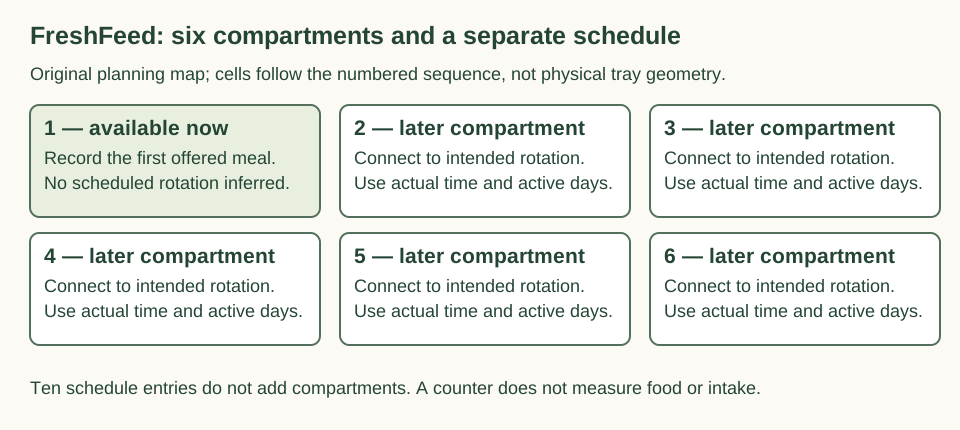
On a narrow screen, scroll within the diagram. Keyboard users can focus its region and use the arrow keys. Open the complete planning diagram
Understand Stop After Full Rotation before refilling
In Settings, Stop After Full Rotation can track the current meal number and change the feeder light as meals run down. The settings instructions say it stops rotating after the sixth meal and prompts you to refill and reset. Clean and refill before using the feed-counter Reset and confirming it. [2]
That home-screen counter reset is different from Settings → Factory Reset, which removes the feeder and returns it to initial setup. Do not erase the device simply to acknowledge a refill. A counter also cannot inspect food quantity or prove a pet consumed a meal.
Three complete schedule-reading cases
Case 1
A fictional owner is about to save at 11:56 and selects noon. Does the proposed time meet the documented lead time?
Show answer and explanation for case 1
No: four minutes is less than six. Choose a sufficiently later time and check the rule at Save.
12:00 minus 11:56 is four minutes. At the unchanged fictional 11:56 save time, 12:02 would be six minutes ahead. Saving later shifts the earliest eligible time; this arithmetic is not an app acceptance test.
Case 2
A fictional list contains eight daily entries. The owner says a fully filled tray therefore stores eight meals. What needs correction?
Show answer and explanation for case 2
The schedule has eight entries, while the tray has six compartments. Plan the actual sequence and refill separately.
Eight is within the ten-entry limit, but programmable capacity does not enlarge the tray. The first available compartment and later rotations must remain connected to the real prepared food.
Case 3
After cleaning and refilling, a fictional app shows the feed-counter Reset notice. The owner opens Factory Reset instead. Is that the same task?
Show answer and explanation for case 3
No. Use the documented counter reset for the refill; Factory Reset returns the device to setup.
A meal-counter acknowledgement does not require deleting the feeder. Restore the proper task before relying on the intended meals.
Sources and further reading
- How To Add, Edit or Delete a Feeding Schedule on My PetSafe® FreshFeed Refrigerated Pet FeederComplete current official main checked 16 November 2026. The selected maker illustrations were inspected separately; no device, account or feeding operation was performed.
- How To Change the Settings on My PetSafe® FreshFeed Refrigerated Pet FeederComplete current official main checked 16 November 2026. The selected maker illustrations were inspected separately; no device, account or feeding operation was performed.
- PetSafe FreshFeed model supportComplete current official main checked 16 November 2026. The selected maker illustrations were inspected separately; no device, account or feeding operation was performed.
- My PetSafe® FreshFeed Refrigerated Pet Feeder Will Not Rotate or Feed Scheduled MealsComplete current official main checked 16 November 2026; named counter/reset or refill-priming instructions.
- How To Reset My PetSafe® FreshFeed Refrigerated Pet FeederComplete current official main checked 16 November 2026; named counter/reset or refill-priming instructions.